
Projects
A project is your Silverdaw work: the tracks, clips, effects, and settings that make up a mix. This page covers creating, saving, and managing projects.
Creating and opening projects
From the File menu (or the startup screen) you can:
- New Project (Ctrl+N) — start a fresh, empty project.
- Open Project… (Ctrl+O) — open a project you saved before.
- Recent Projects — reopen a project you worked on recently, or clear the list with Clear Recent Projects.
Saving
- Save (Ctrl+S) — save your changes.
- Save As… (Ctrl+Shift+S) — save a copy under a new name.
To rename the current project, double-click its name in the title bar or click the pencil beside it.
Project properties
Open File ▸ Project Properties… to view and set details for the current project:
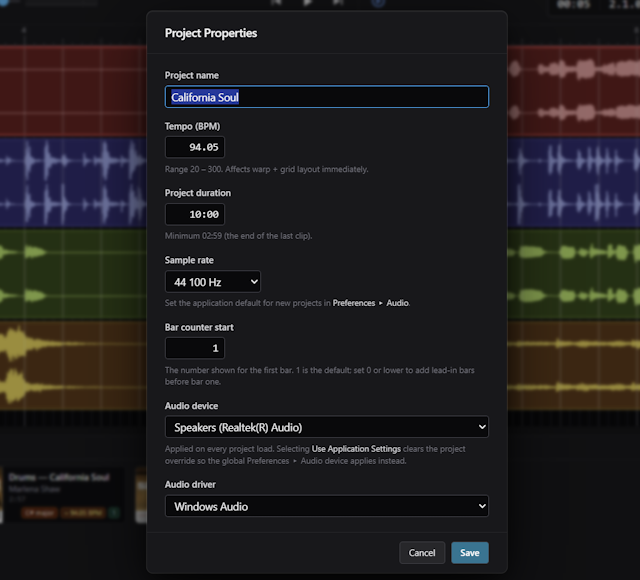
- Project name — the name of the project.
- Tempo (BPM) — the project's tempo, which the grid, metronome, and tempo-matching all follow. Change it whenever you like: your arrangement is retimed to stay in time. See Changing the project tempo.
- Project duration — the overall length, entered as
mm:ssorh:mm:ss. New projects start at 5 minutes; adding a first clip that runs longer automatically extends the project to fit the whole clip. - Sample rate — the audio rate for the project (44.1 or 48 kHz). If an imported file differs, choose whether to convert it to the project's rate or switch the project to the file's supported rate.
- Bar counter start — the number the first bar is labelled with. This starts at 1 by default, and can be set to 0 or lower to leave lead-in bars before bar one (handy for clips with a silent intro).
- Audio device and Audio driver — an optional output device just for this project, applied every time it loads. Choosing Use Application Settings clears the override so the global Preferences ▸ Audio device is used instead. If the project's device isn't connected when it opens, Silverdaw falls back to the default available device and shows Saved Audio Device Not Available. The saved project setting stays unchanged, so it can be used again when that device is available.
Portable projects
When you save a project, Silverdaw nests it in its own folder and keeps its generated stems and samples beside the project file. That means you can move or sync the whole folder between machines — for example through cloud storage — and still open it, as long as the original imported source files are still available at the same location.
If you have moved or renamed those source files, you can point Silverdaw back at them using Relink (see below).
You can also copy generated stems and samples from another saved project with File ▸ Import from Project…. See Importing from another project.
Relinking moved files
If a project can no longer find an imported source file — because it was moved or renamed — Silverdaw lets you relink it, reconnecting the project to the file in one step so playback and editing continue as before.
Autosave and crash recovery
Silverdaw quietly snapshots your work in the background as you go. If the application closes unexpectedly, it offers your recovered work back to you the next time you open it, so you don't lose your progress.
Undo and redo
Every edit can be reversed. Use Edit ▸ Undo (Ctrl+Z) and Edit ▸ Redo (Ctrl+Y) to step back and forward through your changes.