
Quick Start: Your First Remix
This short walkthrough takes you from an empty project to a simple remix: import a song, chop it into loops, add a couple of effects, and export the result. It assumes Silverdaw is already installed and open.
You will need at least one audio file to work with — a song, a loop, or a vocal.
1. Start a project
On the startup screen, choose New Project. You now have an empty timeline ready for audio.
2. Import and place a track
Drag one audio file from Windows Explorer onto an empty part of the timeline. Silverdaw imports it into the Library and creates a new track with the file already placed on it.
You can instead open the Library tab in the bottom panel, click Import, pick an audio file, then drag its tile onto a timeline track.
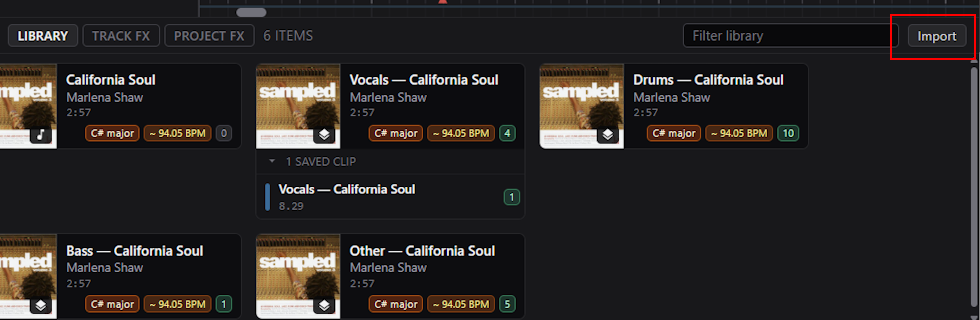
Silverdaw analyses the file in the background to detect its tempo (BPM), key, and beat positions, so it can line clips up musically later.
3. Play it
Your audio appears as a clip — a block showing its waveform. Press the space bar to play, and press it again to stop.
The first clip you add to the timeline also sets your project's tempo: Silverdaw matches the project BPM to that clip's detected tempo. This happens only once — later clips won't change it — and you can adjust the tempo yourself afterwards from the transport bar.
Clips snap to the timeline grid as you drag, so they naturally land on the beat. The grid control at the bottom of the window sets how fine that grid is, and holding Alt while you drag places a clip freely.
4. Chop it into loops
Now turn the song into loops you can rearrange:
- Right-click the clip and choose Transform ▸ Chop to Grid ▸ 1 bar. Silverdaw cuts the clip into equal, beat-aligned slices.
- Each slice is now its own clip. Drag them around, delete the ones you do not want, and Duplicate (press D) the ones you like to repeat them.
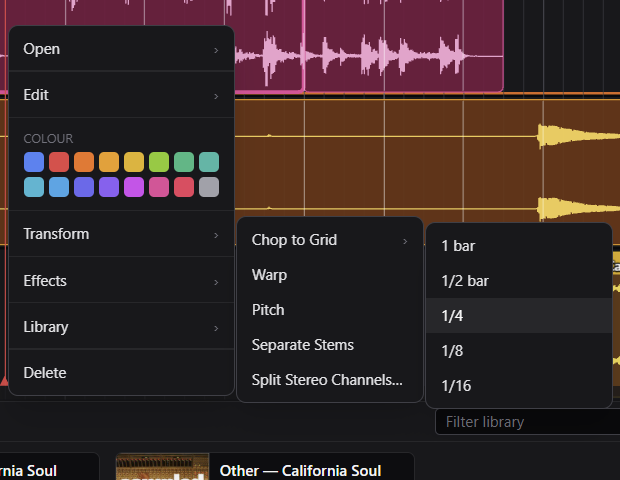
Because everything is non-destructive, your original file is never changed — you are only rearranging.
To split a single clip at an exact point instead, move the playhead there and choose Edit ▸ Split Clip at Playhead.
5. Add some effects
Select a track by clicking its header on the left, then open the Track FX tab in the bottom panel. Here you can shape the track's sound:
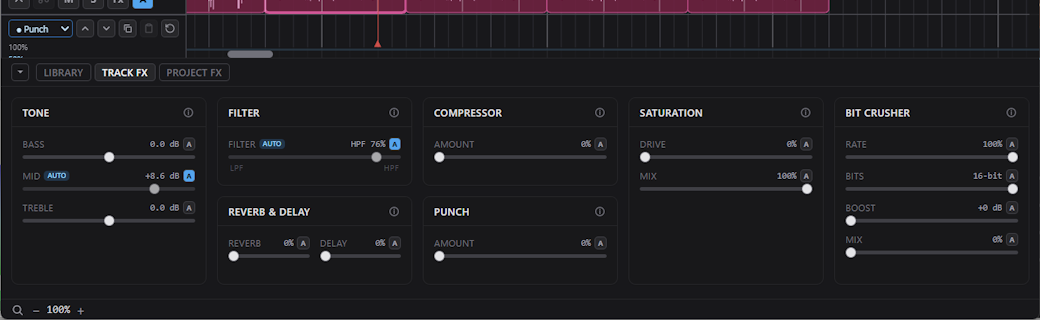
- Tone — boost or cut Bass, Mid, and Treble.
- Filter — sweep from a low-pass to a high-pass filter for classic DJ build-ups and drops.
- Compressor — even out the level with a single knob.
- Reverb and Delay — send some of the track to the shared reverb and delay effects for space and echo.
Try nudging the Filter and adding a touch of Reverb. Changes play back live, so you can hear them straight away.
6. Save and export
- Save your project with Ctrl+S so you can come back to it later.
- When you are happy, choose File ▸ Export Mixdown… (or press Ctrl+M) to render the whole project to a single audio file you can share.
That's a complete remix, start to finish. From here, explore the rest of the guide to go deeper: