
Preferences
Open Edit ▸ Preferences… to change how Silverdaw works. Preferences apply across the whole application (a few settings, like the audio device, can also be overridden per project in Project Properties).
Preferences are organised into tabs down the left. Changes are held until you click Save; Cancel (or Esc) discards them.
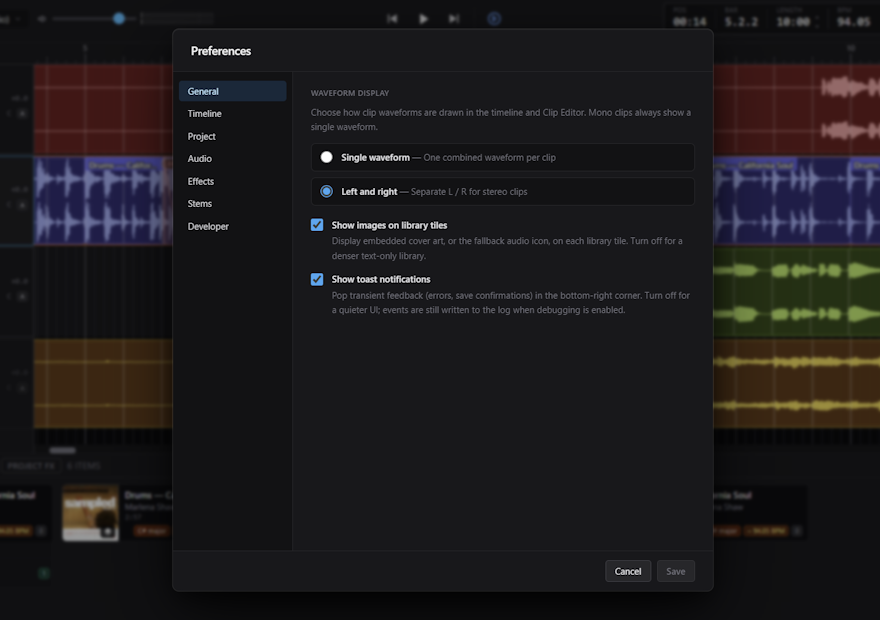
General
Appearance and notifications:
- Waveform display — choose whether clips draw a Single waveform (one combined waveform per clip) or Left and right (separate L / R lanes for stereo clips). Mono clips always show a single waveform. Your choice applies across both the timeline and the Clip Editor.
- Show images on library tiles — show embedded cover art (or a fallback audio icon) on each Library tile. Turn it off for a denser, text-only library.
- Show toast notifications — pop transient messages (errors, save confirmations) in the bottom-right corner. Turn it off for a quieter interface.
Timeline
How the timeline behaves during playback and editing:
- Follow playback — scroll the timeline while playing so the playhead stays centred. Turn it off to keep the view still. This can also be toggled from the transport bar.
- Set project tempo from first clip — when you drop the first clip onto a new project, adopt its detected tempo as the project BPM. On by default; turn it off to keep the project at its current tempo — you can always set the BPM yourself from the transport bar. (This sets the project's tempo from a clip; the setting below instead stretches each dropped clip to match the project.)
- Match project tempo on drop — when you drag a clip onto a track, automatically switch on Warp so the clip's tempo matches the project. Turn it off to drop clips at their own tempo; you can still warp any clip yourself afterwards.
- Align clips to the beat grid after analysis — once a clip's tempo has been detected, nudge it so its beats line up with the timeline's beat grid, keeping splitting and marker placement on the beat. On by default. Clips with no detected beats (such as simple samples) are left where you placed them.
- Previous / next buttons — choose where the transport's previous and next buttons jump: Timeline ends (the project start and end) or Markers (step through your timeline markers).
Project
Defaults and file handling for projects:
- Default paths — the starting Project folder for Save, Save As, and Open, and the Clip folder for adding a track from a file and for Library imports.
- Autosave — snapshot projects with unsaved changes in the background, so work can be recovered after a crash. You can set how often it saves (from 5 to 600 seconds). See Autosave and crash recovery.
- Clean up project files on remove — when you remove a stem or sample from the Library, also delete its generated file (and the empty folder it leaves behind) from disk. Off by default, so removing an item only unlinks it from the project. Your original imported files are never deleted.
DANGER
Deleting generated files with Clean up project files on remove cannot be undone.
Audio
Where and how Silverdaw plays sound:
- Default project sample rate — the rate (44.1 kHz or 48 kHz) new projects start with. Existing projects keep their own saved rate, which you can change in Project Properties.
- Output device — the device Silverdaw plays through. If you press play and hear nothing, check here first. You can also switch device at any time from the transport bar without leaving the timeline. Each device has a Keep awake checkbox — turn it on for a device that sleeps and clips the first beat (typically a USB audio device); it is off by default. If your chosen device isn't connected when Silverdaw starts — an unplugged USB or Bluetooth device, say — Silverdaw quietly switches to another available device (usually your system's default) and keeps your choice, so reconnecting the device restores it the next time you open Silverdaw. If a device disappears while you're playing, Silverdaw moves to another one on the fly so the sound keeps going.
- Audio driver — an optional, advanced choice of the audio system Silverdaw uses for the selected device. The default suits most people.
Effects
Global defaults for the per-clip DJ turntable effects (see Brake and Backspin):
- Brake — the Duration (Short, Medium, or Long) and the Curve (linear, curved, or steep) of the record-stop slowdown.
- Backspin — the Duration and the Intensity (gentle, medium, or wild) of the reverse rewind.
Changing these updates every clip that already uses the effect.
Stems
Defaults for stem separation. Models are the engines Silverdaw uses to split a song into its parts:
- Separation models — shows whether the high-quality models are installed and offers Download models (~1 GB) to fetch them. If you already have a copy, use the Locate… buttons for the Vocal model and Drums & bass model to point Silverdaw at their folders instead of downloading again.
- Cleanup — optional per-stem tidying (Vocal cleanup, Drum cleanup, Bass cleanup, and Other cleanup), each with a Light, Medium, or Strong strength.
- Backup model — a lower-quality fallback used automatically for any stem when the models above aren't installed or can't run on your hardware. It's fetched on first use if it's needed, so you don't normally download it yourself — but a Download… button and Locate existing model… are here if you want them. Turn on Always use the backup model to force it even when the other models are installed.
- Hardware acceleration (experimental) — Use GPU acceleration for stem separation to separate faster on a compatible graphics card. Off by default; separation runs on the processor otherwise.
The Quality speed setting (Fast, Balanced, or Best) is chosen each time you run Separate Stems, not here.
Silverdaw also has a Developer tab, mostly for diagnosing the application. If you're ever asked for logs when giving feedback, turn on Write diagnostic logs there — it's off by default and takes effect the next time you launch Silverdaw. Each session's logs are written to a timestamped folder inside the Log folder, which defaults to a
Silverdaw\logsfolder in your user folder; use Browse… to point it somewhere else. The rest of the tab isn't part of everyday use and can be safely ignored.